Release Update (Global) 2.0.2 Alpha : 05 Oct 2016
This is a list of features that have been added to TrackPlex.
- RTO Management
Details about how to use the RTO Management feature.
Navigation link "Manage RTO" is available to users in the top navigation menu.

Dashboard UI:
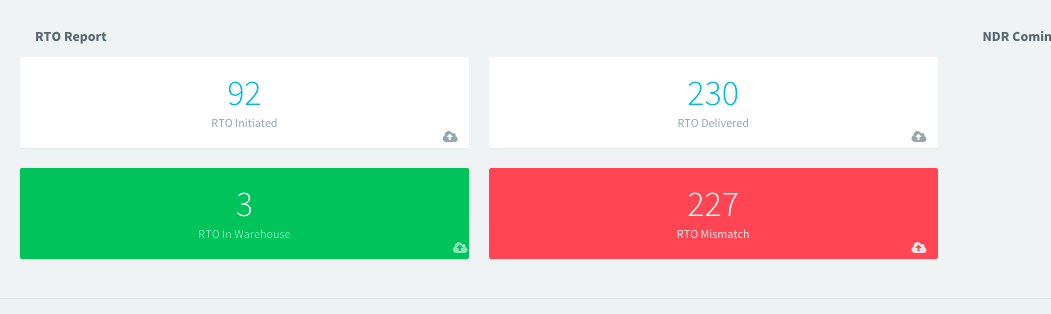
Interface screenshot:
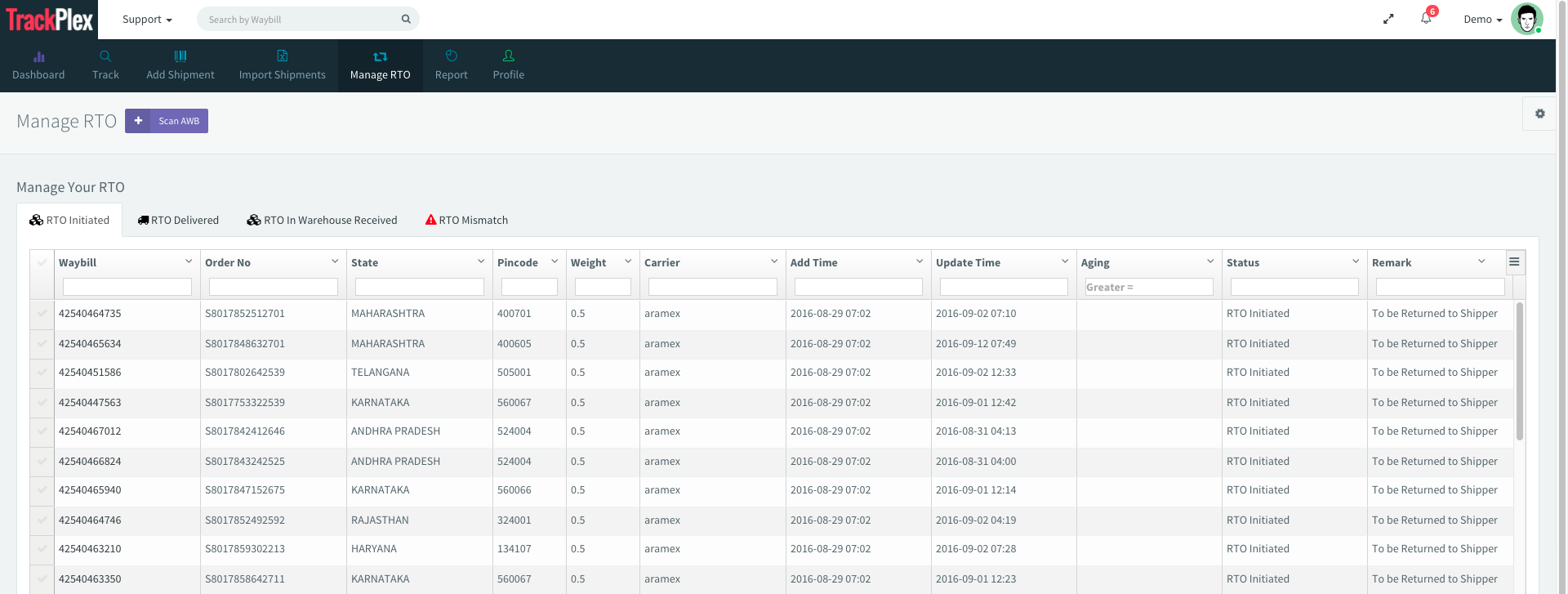
- RTO Initiated Tab
This tab will show you the list of shipments which are RTO Initiated by the courier service. The data is presented in a smart grid so the user can perform sorting and can also export data in pdf and csv format for further processing.
- RTO Delivered
This tab displays the list of shipments which are marked as RTO Delivered by courier service. It is a smart grid so the user can perform sorting and can also export data in pdf and csv.
- RTO In Warehouse Received

This tab displays the shipments which are physically received by scanning the waybills and updated in the system.
- RTO Mismatch
RTO Mismatch tab will show the list of those shipments which are RTO Delivered by the courier, but not physically scanned and marked as RTO Physically Received by the user.
How to update the RTO in system?
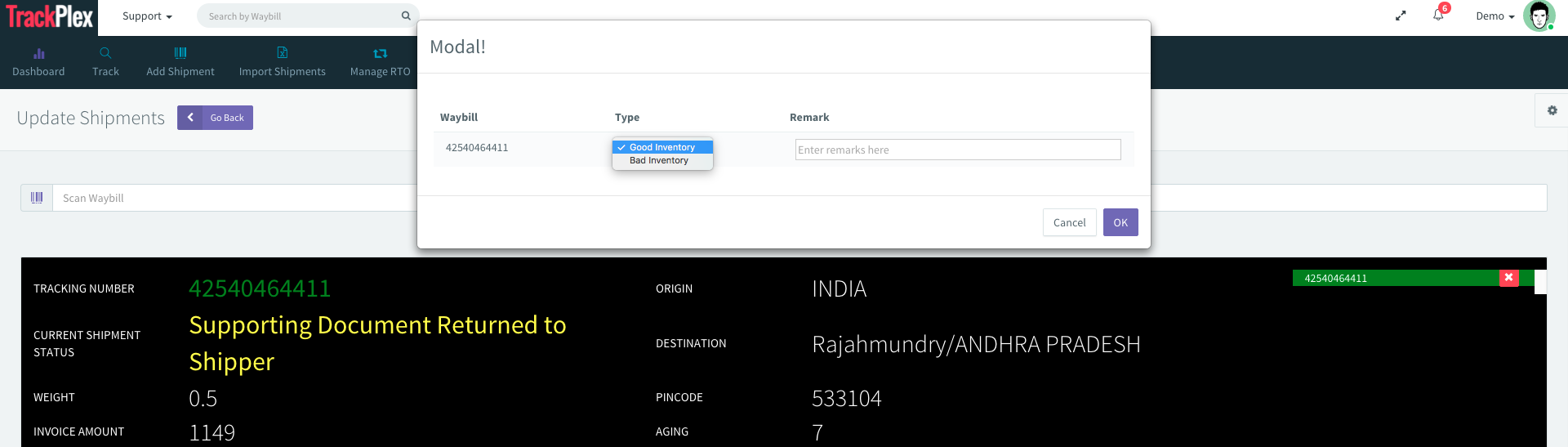
It's very simple to update the RTO shipments on TrackPlex. Click on "Scan AWB"

Interface Look:
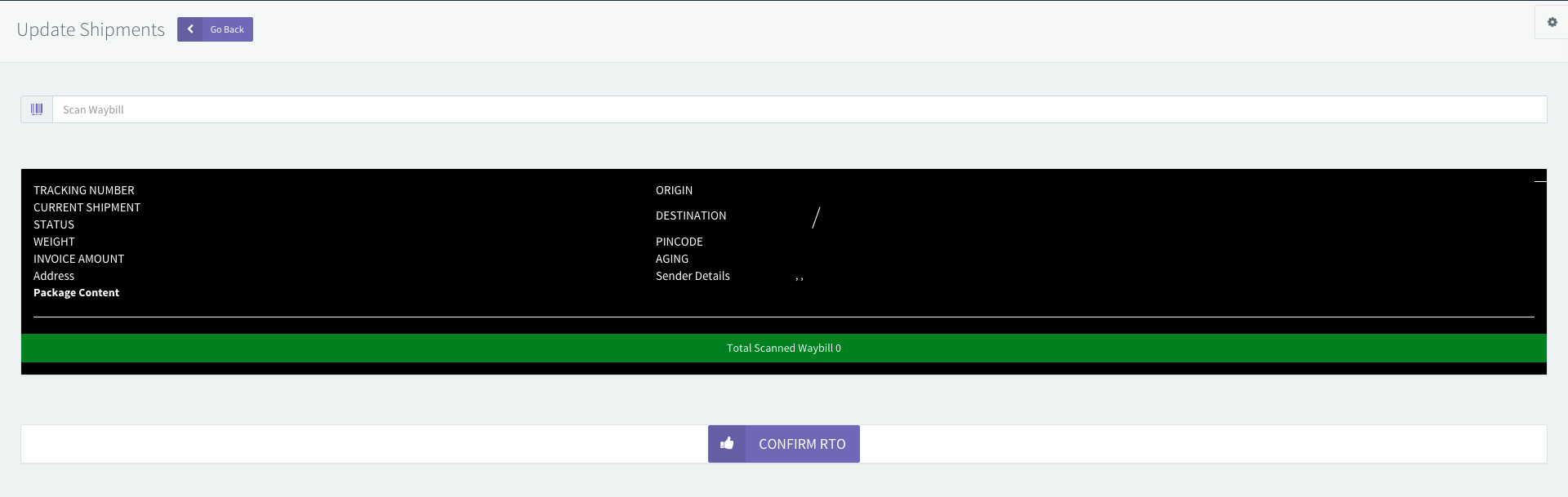
You can scan up to 1k+ AWBs in one go. As soon as you scan an AWB, it will show the current status of scanned waybill and it will be added to a list. Once the scanning process is complete, click on Confirm RTO. A popup will appear on the screen, to choose the type of inventory you received and remark in the appropriate fields. Once it is done, click on OK to update the shipments and check on RTO In Warehouse Received tab.